
Create & invite
Creating a spot and
inviting your people
How to register a place you already go as a spot, and invite the people you want to share it with.
Last updated: July 30, 2026
Creating a spot
Tap Create a spot
Tap below the spot list on the home screen. If you have no spots yet, you can start from the create button in the middle of the home screen.
Enter a name and category
Choose the spot name your members will see, and a category. If there is something to add — where you usually meet, for example — put it in the optional memo.
Choose how people join, then create
Turn on if you want to review each request. Check your settings, then tap .
The two ways to join
Require approval
An invited person sends a request, and becomes a member once the owner approves it.
Auto-approve
An invited person taps Join and becomes a member right away.
Sharing an invite
Open the spot you created
After creating it you return to the home screen. Open the new spot from there.
Tap the invite icon
Tap the invite icon — a person with a plus — at the top of the spot screen. You can also reach it from on the members screen.
Send the invite
Share it in whichever of these suits the person and the moment.
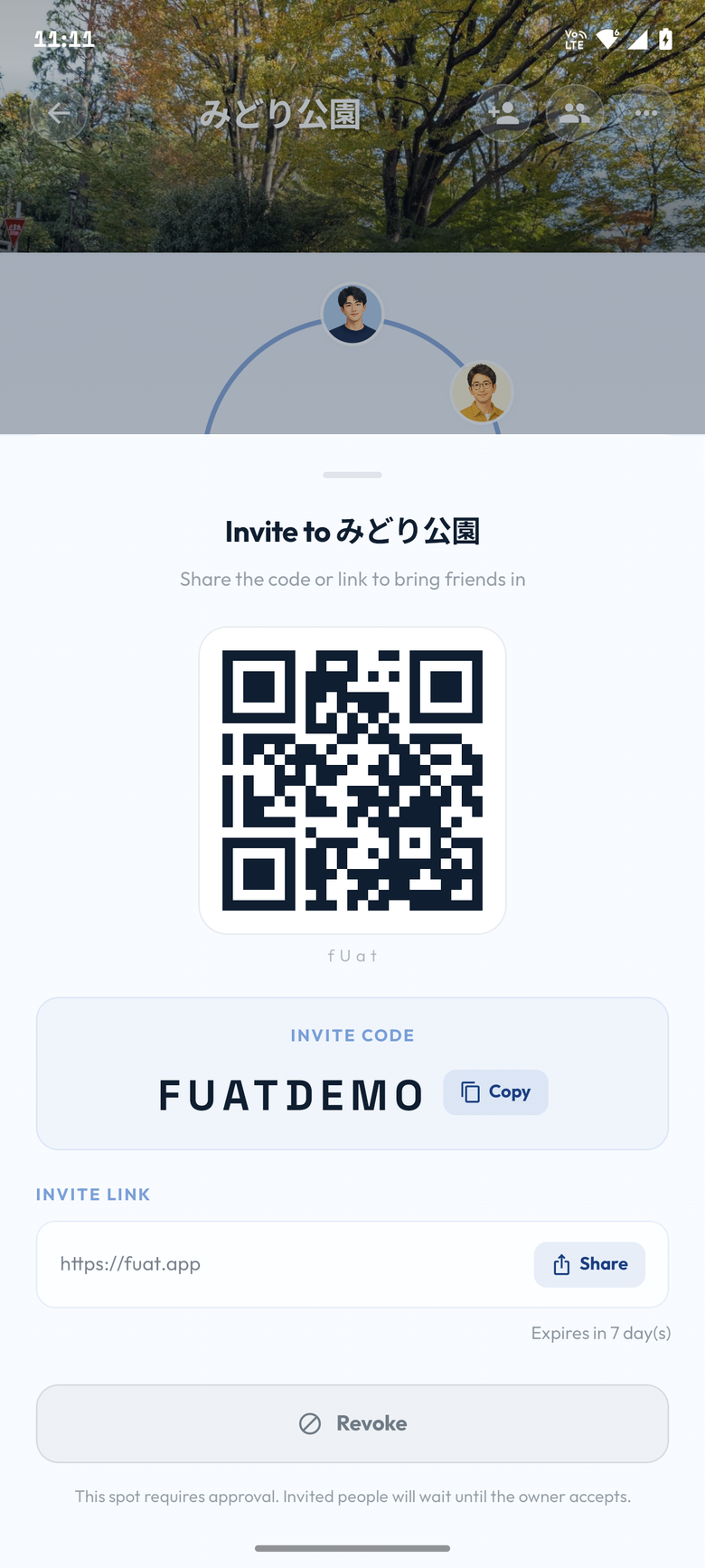
The owner can reissue the code from the invite screen. Reissuing revokes the previous link and code. People who already joined are not affected.
Approving a request
When a request arrives for a spot that requires approval, the spot screen shows that a join request is waiting.
Open the notice
Tap the join-request notice on the spot screen to open the members screen.
Check who is asking
Look at the name and the inviter shown under . Make sure the request is from someone you know.
Approve or decline
The check mark approves, the close mark declines. Approving makes that person a member of the spot.
Frequently asked questions
How many spots can I create?
On the free plan you can own up to 3 spots. Premium raises that to 20. Spots you were invited to do not count toward the limit.
Can members other than the owner invite people?
Yes. Any member can show and share a valid invite link, QR code, or invite code. Only the owner can reissue the invite code.
An invite I sent earlier no longer works
The invite code may have been reissued, which revokes the earlier link and code. Ask a member of the spot to send the current invite again.